Browser states
Overview
Browser States allow you to capture a specific browser session — such as an authenticated user state — and use it as the starting point for your tests.
While Modules execute a sequence of actions to reach a desired state, Browser States snapshot the active browser session, allowing tests to begin instantly in a logged-in or otherwise pre-configured state.
Setting up the chrome extension
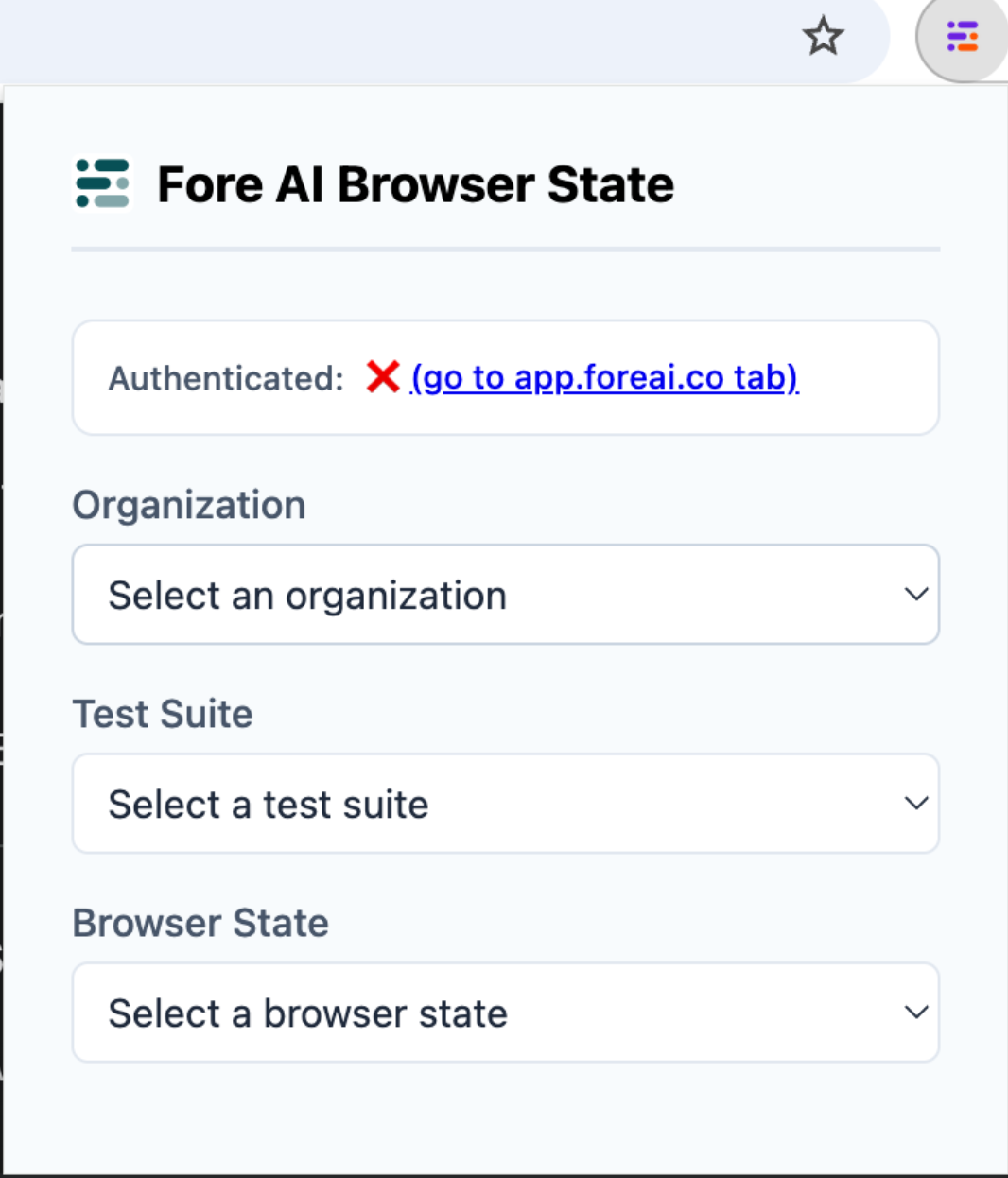
To capture and manage Browser States, you must use the Fore AI Chrome Extension.
- Open the extension and click the 'go to app.foreai.co tab' link.
- Once authenticated, the extension will display your account email.
- Navigate to the website you wish to test.
- Open the extension and select your Organization and Test Suite (Project).
Creating and updating states
You can capture a new state or refresh an existing one directly from your browser.
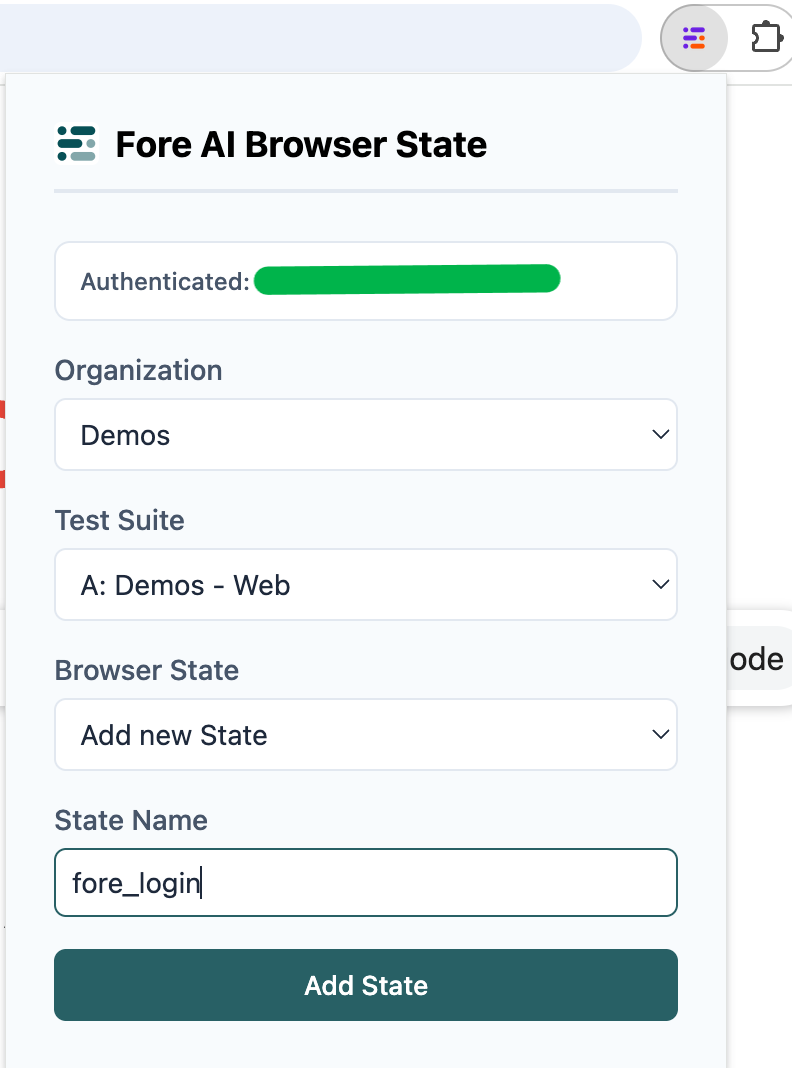
Create a new state
- Log in to your application manually.
- Open the Fore AI Chrome Extension.
- Select Add new State.
- Give it a descriptive name (e.g.,
[website-name]_authenticated_user). - Click Add State.
Update an existing state
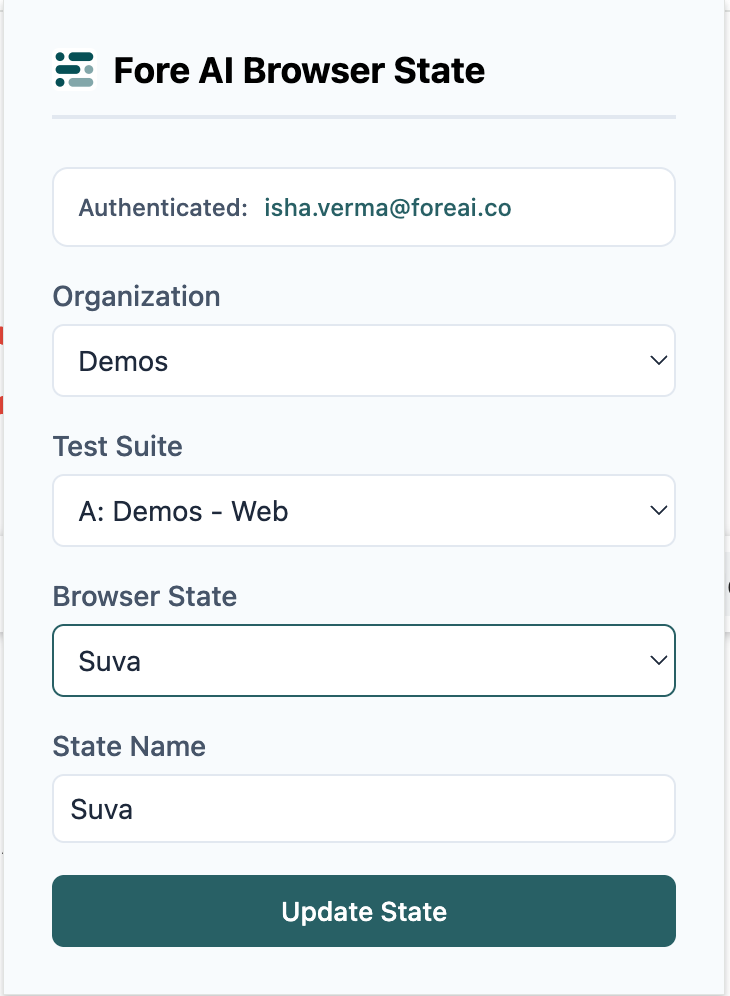
If a session has expired or the site requirements have changed:
- Open the extension.
- Select an existing state from the dropdown.
- Click Update State.
This overwrites the previous session data with your current browser tab's state.
Using browser states in test creation
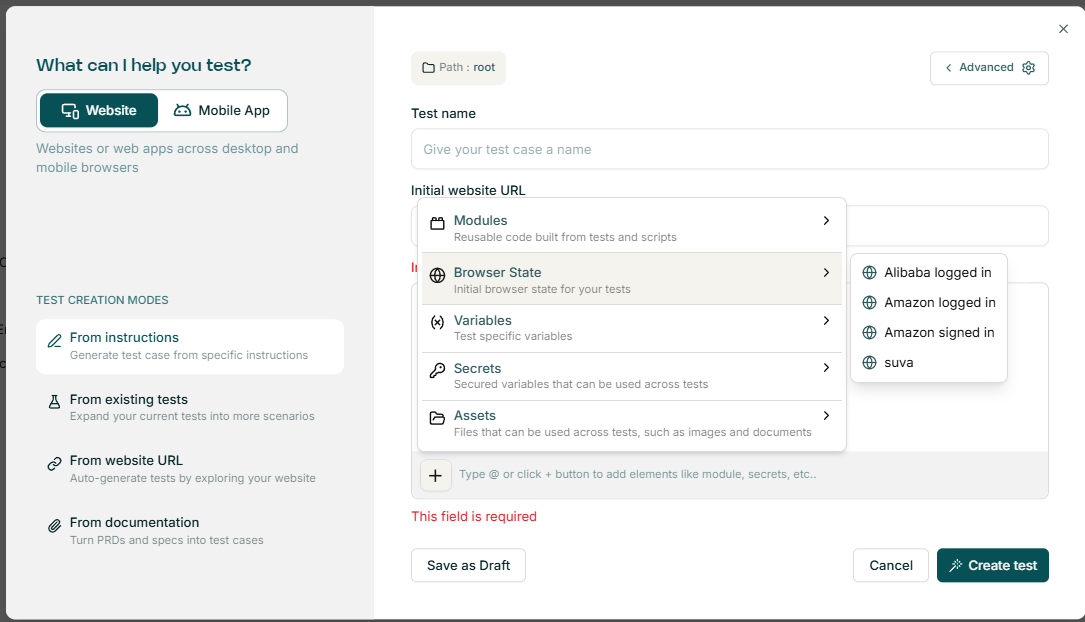
Once a state is saved to your project, you can apply it to any new test case.
- Start a new test as usual.
- Click the + icon in the instruction bar to access options.
- Choose Browser State from the menu.
- Select your captured state from the project list.
The test will begin execution directly from the saved session state.