Notifications
foreai can send alerts to your team whenever a test suite runs. A quick summary of
- The tests that ran
- The number that succeeded & failed
- The ones that failed
- A quick link back to platform to directly examine the failure
Notifications are configured in two places: a channel is set up once at the organisation level, then enabled per test suite.
Notification channels
A notification channel tells foreai where to send alerts. Three channel types are supported:
- Email notifications — send failure alerts to one or more email addresses
- Slack notifications — post alerts to a Slack channel via an incoming webhook
- Microsoft Teams notifications — post alerts to a Teams channel via an incoming webhook
Setting up a Channel
Go to Settings → Notification. If no channels have been configured yet, the page shows an empty state.
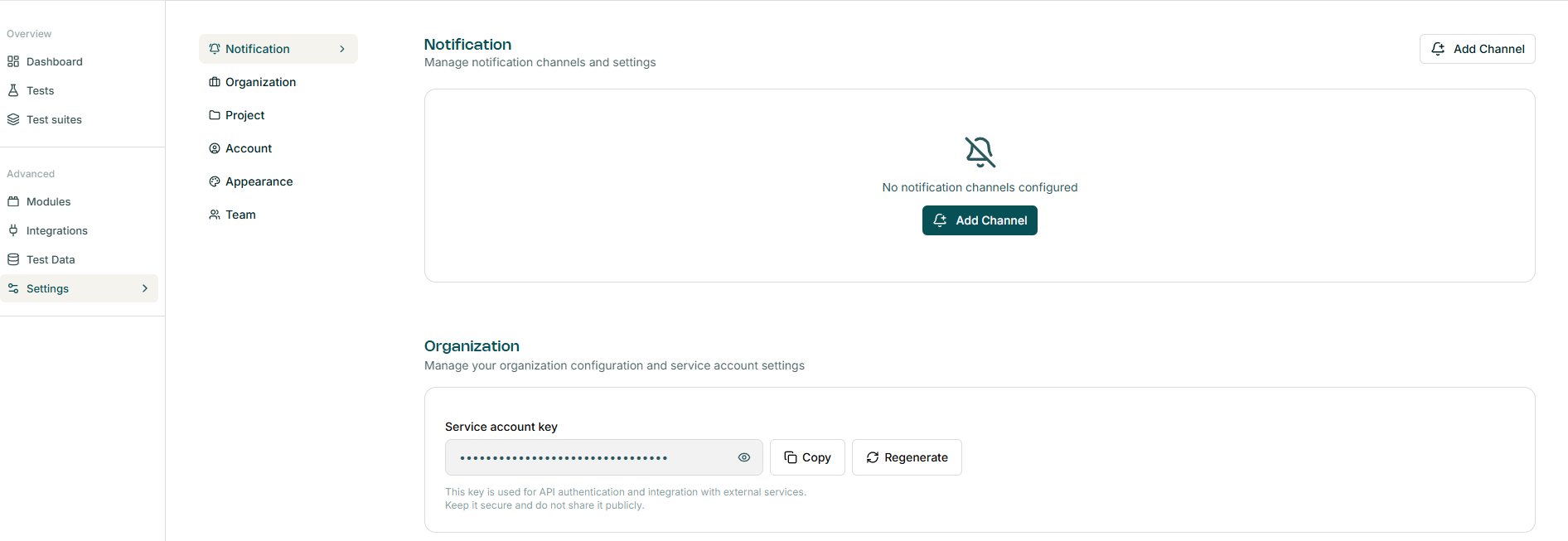
Click "Add Channel" (top-right or centre of the page). A modal opens where you enter a name and select the channel type.
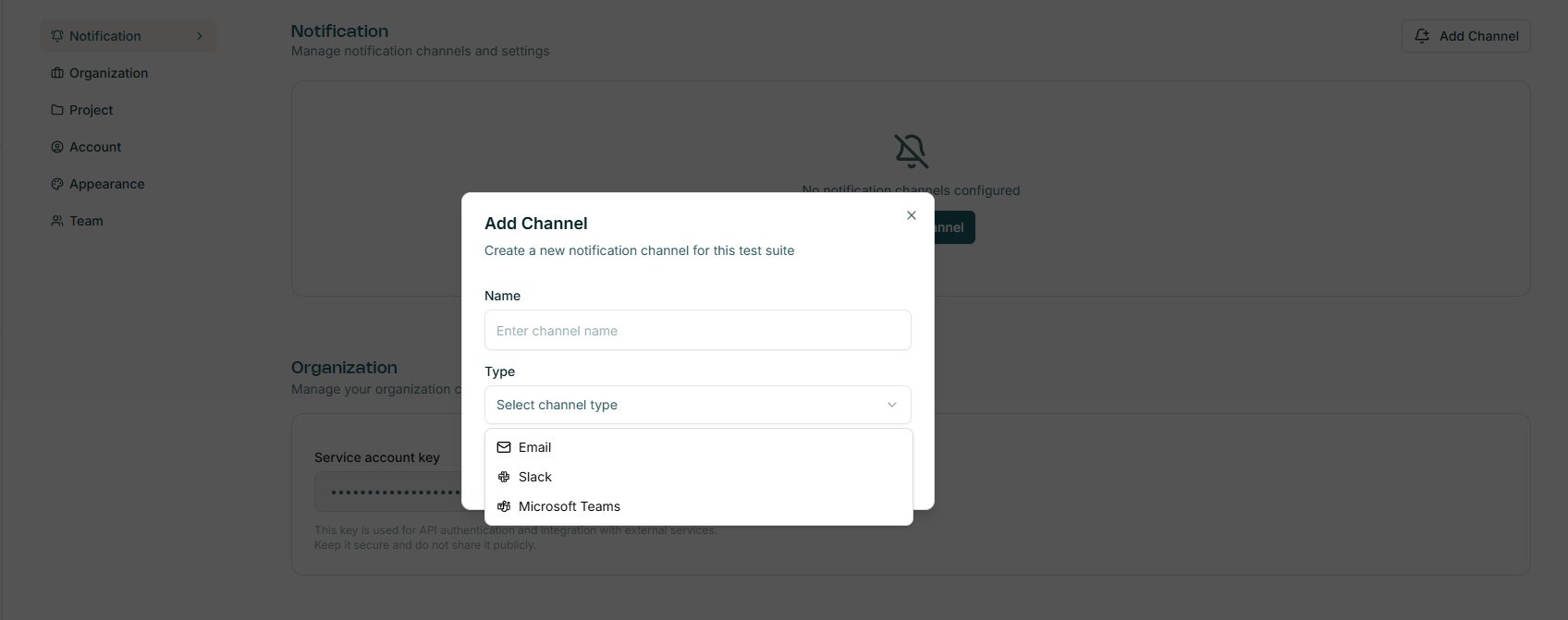
The fields shown below the channel type selector, change depending on the type chosen. Follow the relevant guide for your channel.
Enabling notifications on a test suite
Once a channel is saved, it is available to any test suite — but notifications are off by default. To turn them on:
- Open a test suite
- Click the bell icon in the top-right toolbar
- Select the channel(s) to enable from the "Notification channels" popover
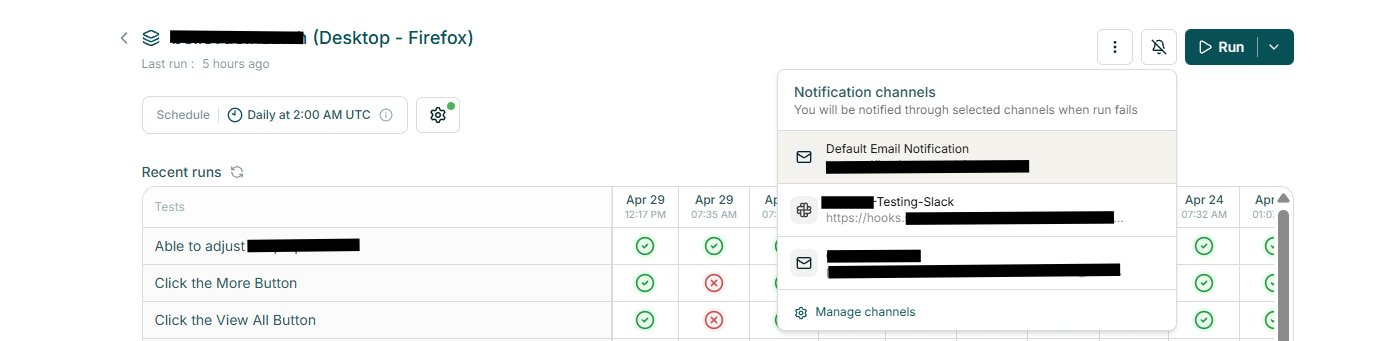
A checkmark confirms the channel is active. foreai will post an alert to that channel whenever the suite has a failed run.