Teams notification Setup Guide
Follow these steps to connect a Microsoft Teams channel to foreai so you receive run failure alerts directly in Teams.
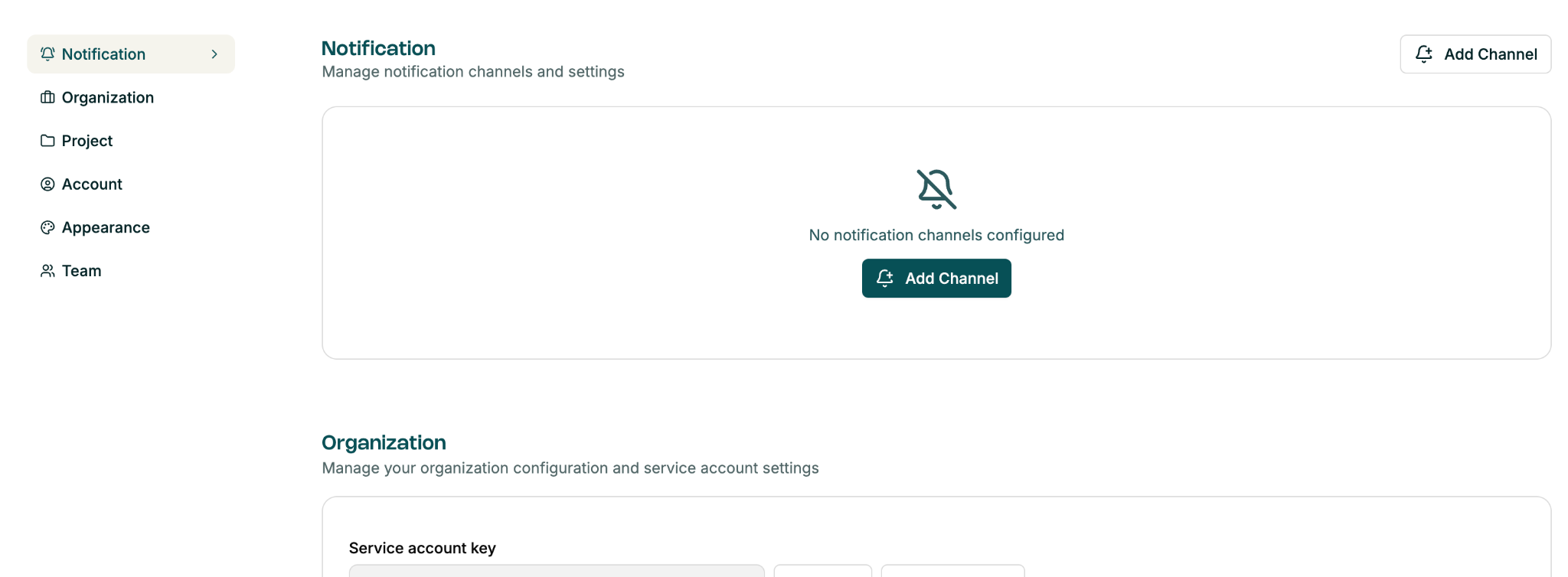
Step 1 : Open notification settings in foreai
In foreai, go to Settings → Notification. Click "Add Channel" to begin.
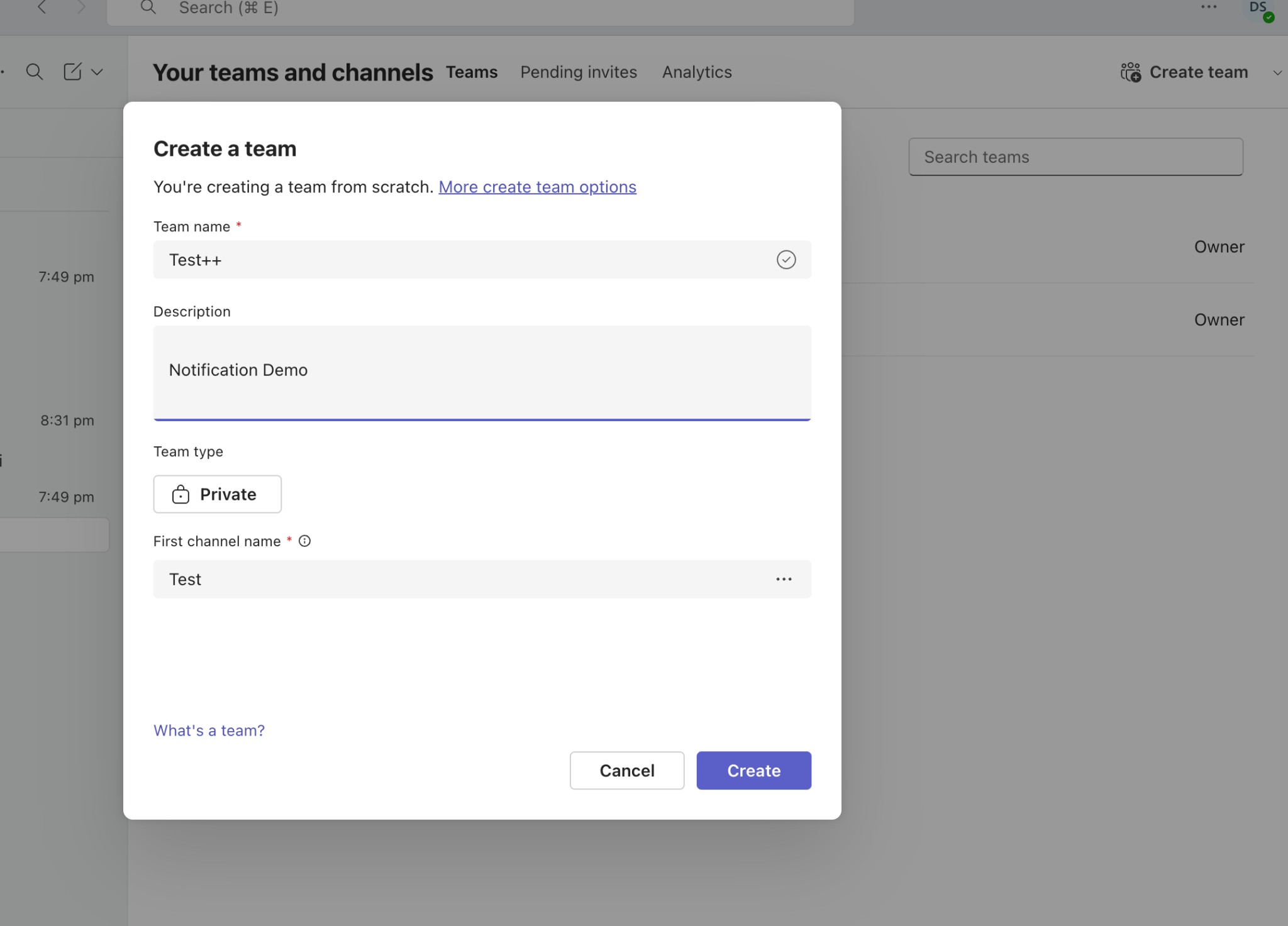
Step 2 : Create a new teams channel
In Microsoft Teams, create a dedicated channel for notifications. Give it a clear name (e.g. foreai-alerts), set the team type to Private, and click "Create".
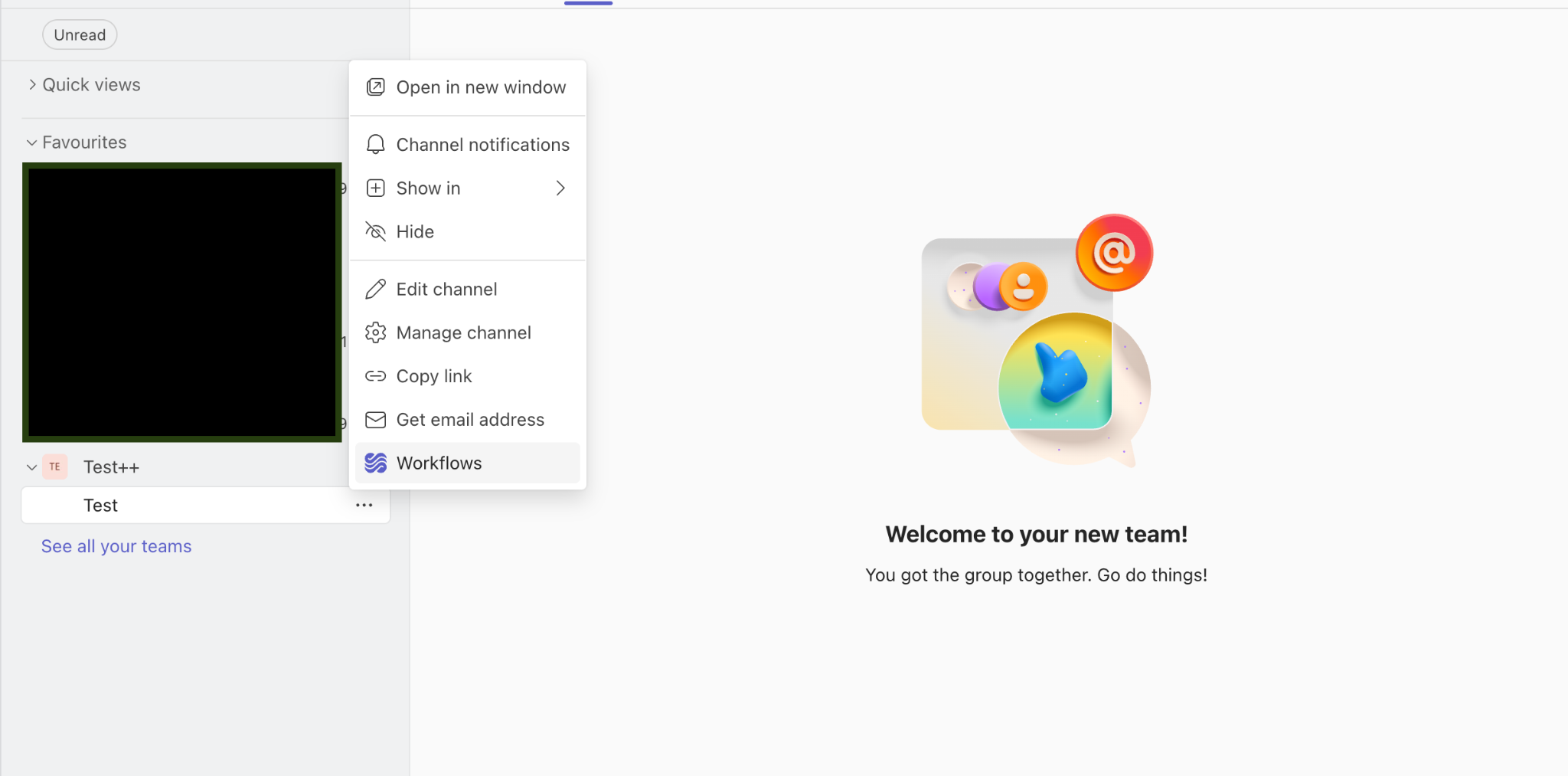
Step 3 : Open workflows for the channel
Right-click (or click "…") on the channel name in the Teams sidebar and select "Workflows" from the context menu.
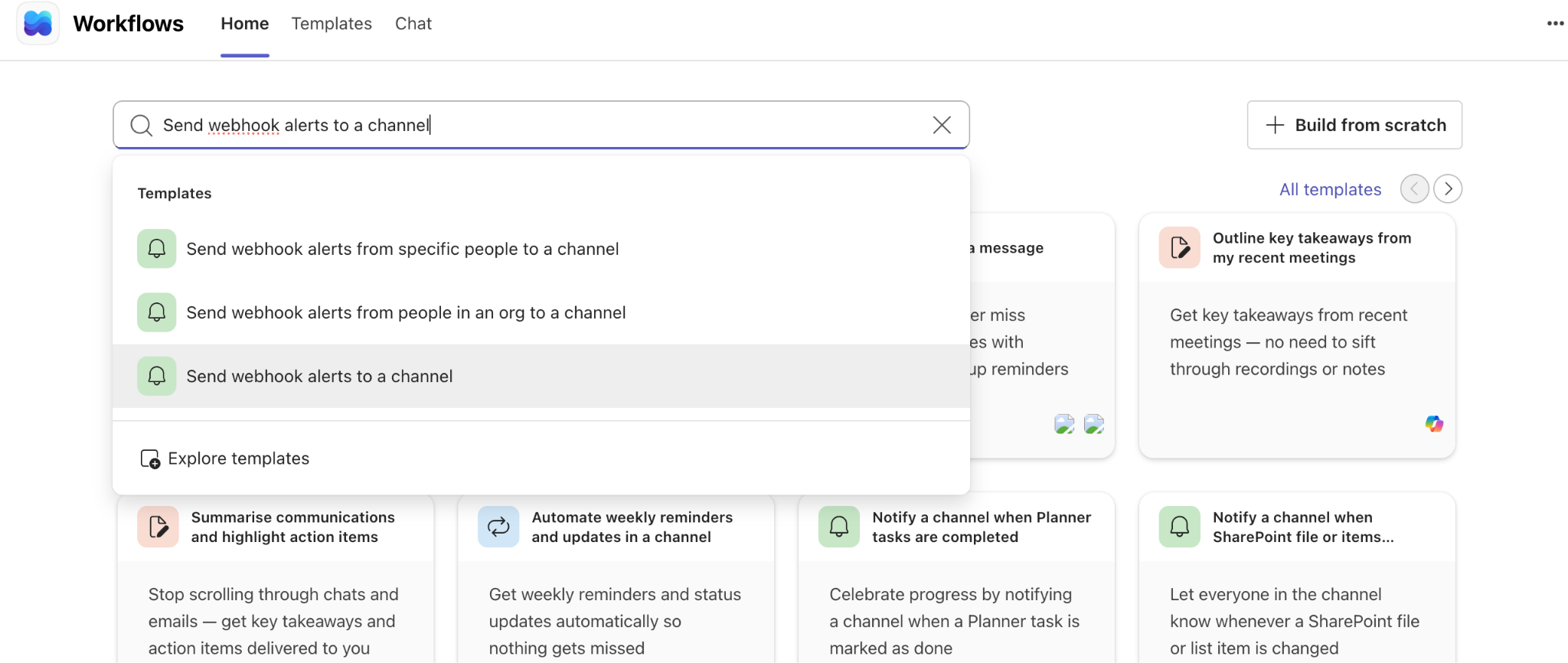
Step 4 : Find the webhook template
In the Workflows panel, search for "Send webhook alerts to a channel" and select that template from the results.
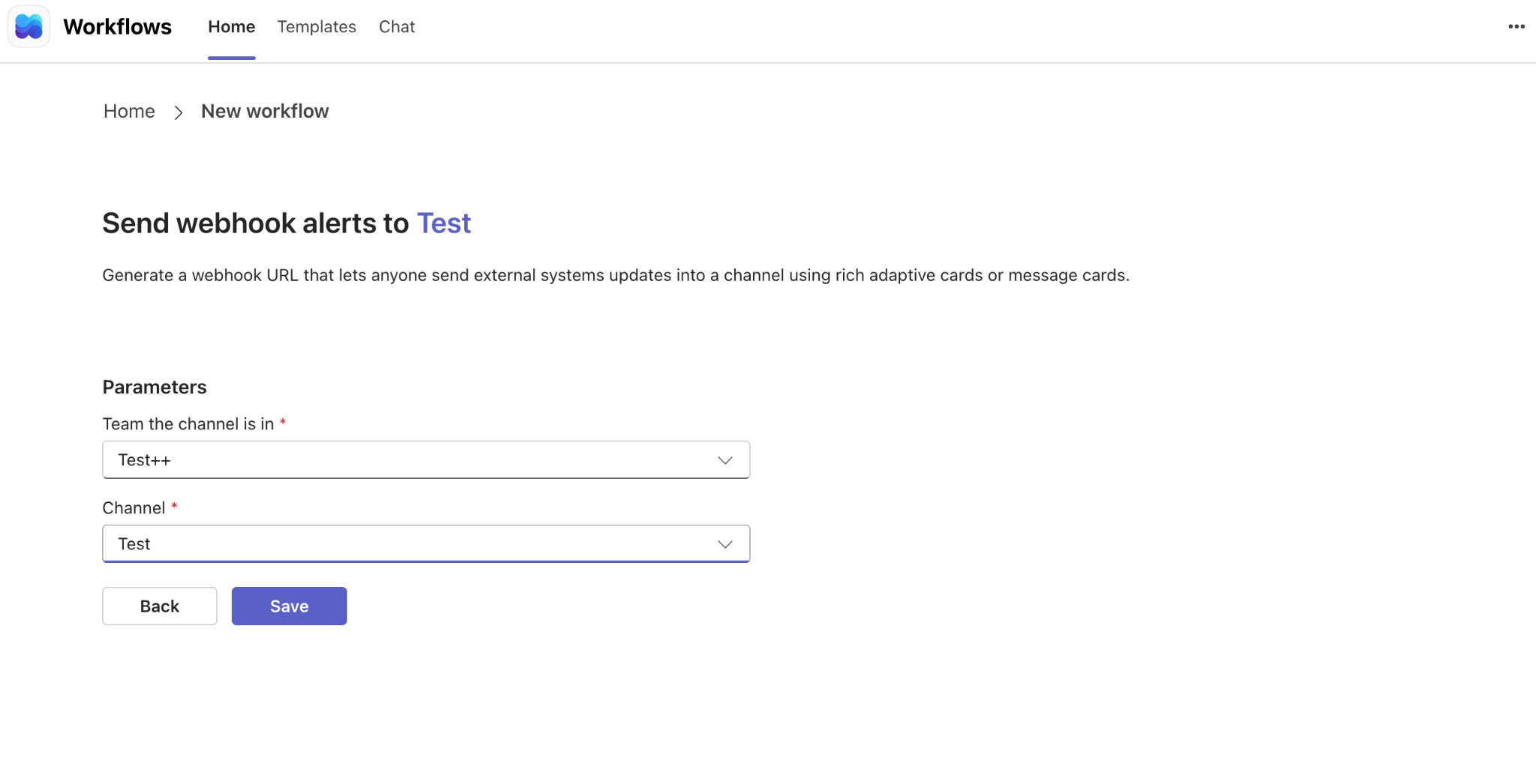
Step 5 : Configure and save the workflow
Select the team and channel you just created from the dropdowns, then click "Save".
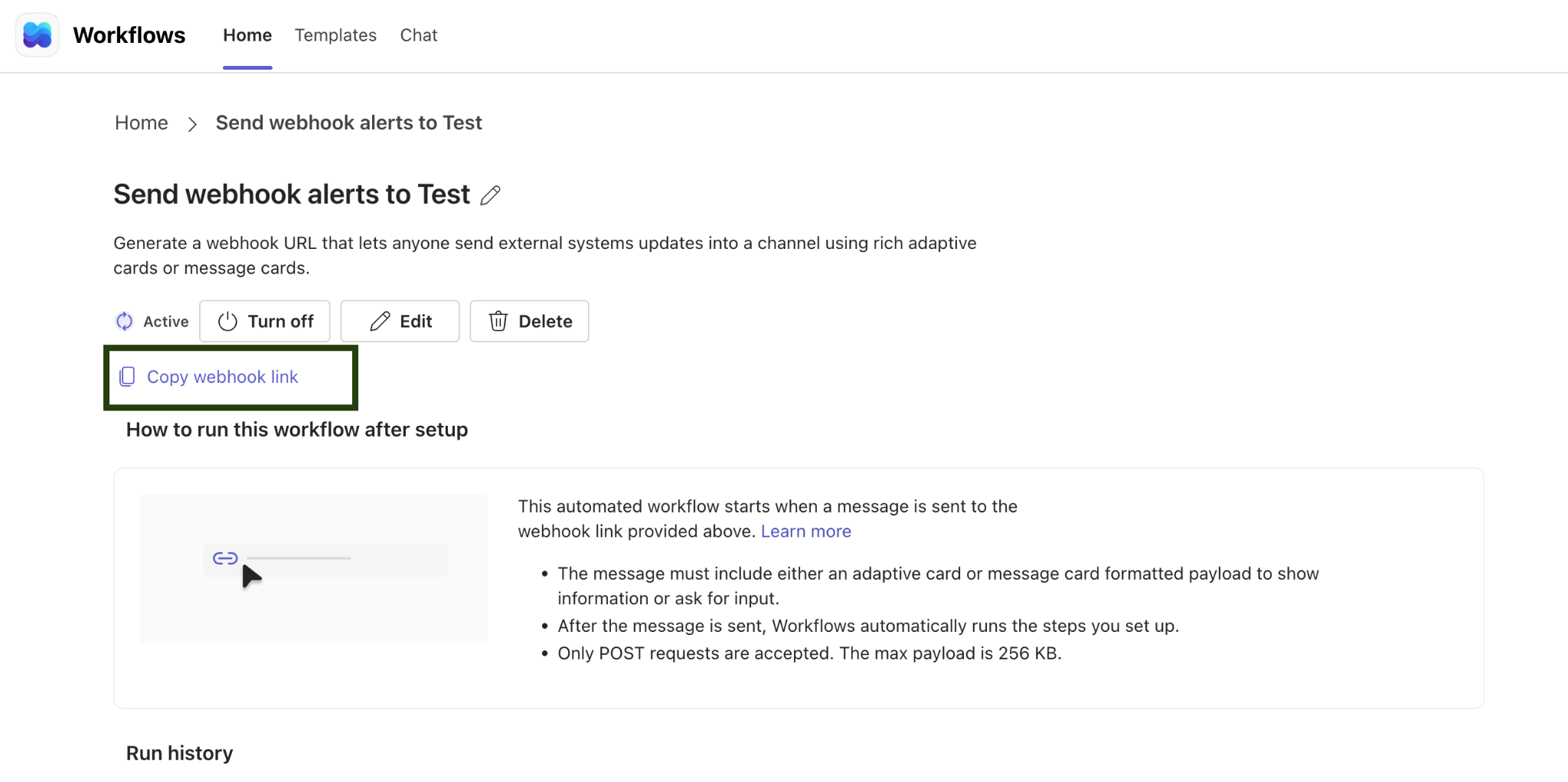
Step 6 : Copy the webhook URL
Once the workflow is active, click "Copy webhook link". Keep this URL safe - you'll need it in the next step.
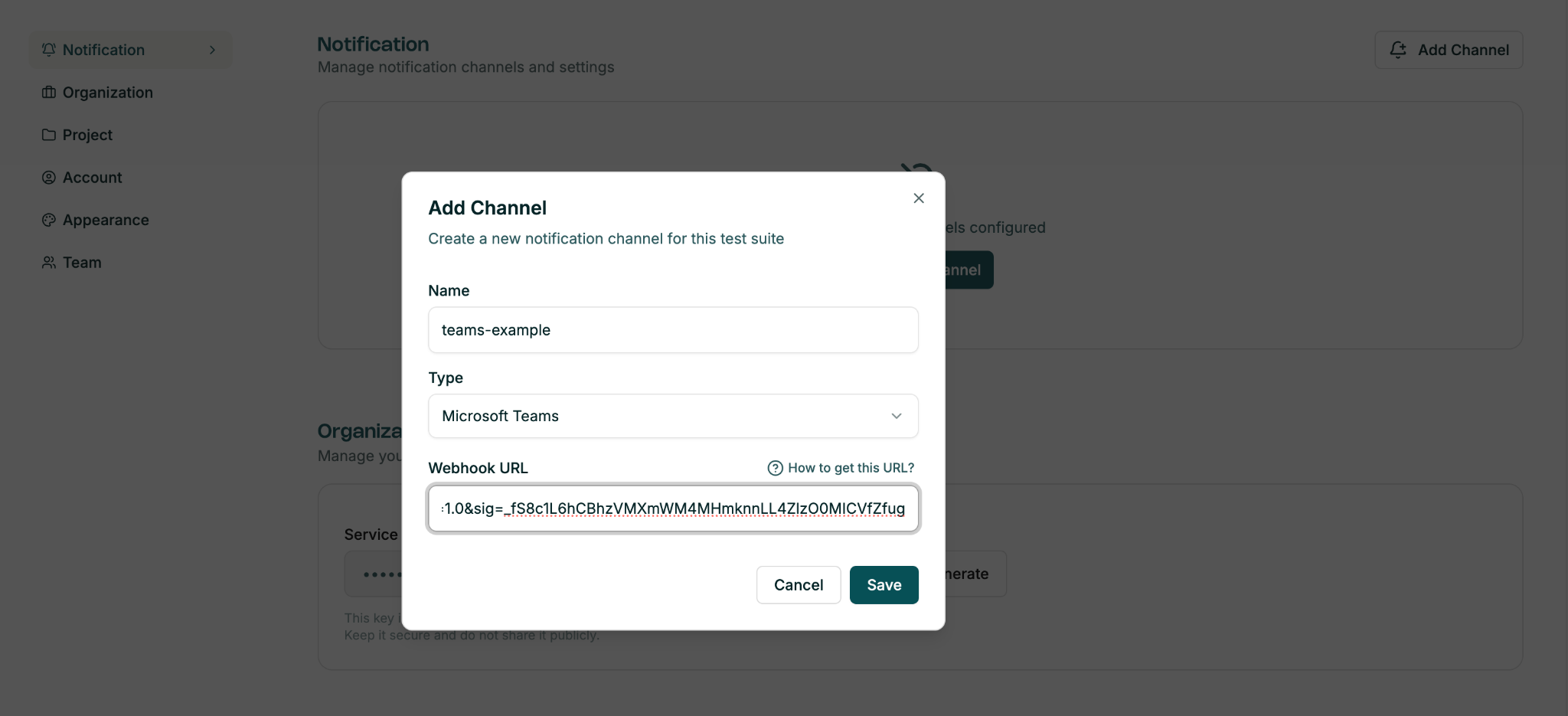
Step 7 : Add the channel in foreai
Back in foreai, click "Add Channel". Enter a name, select "Microsoft Teams" as the type, paste the webhook URL, then click "Save".
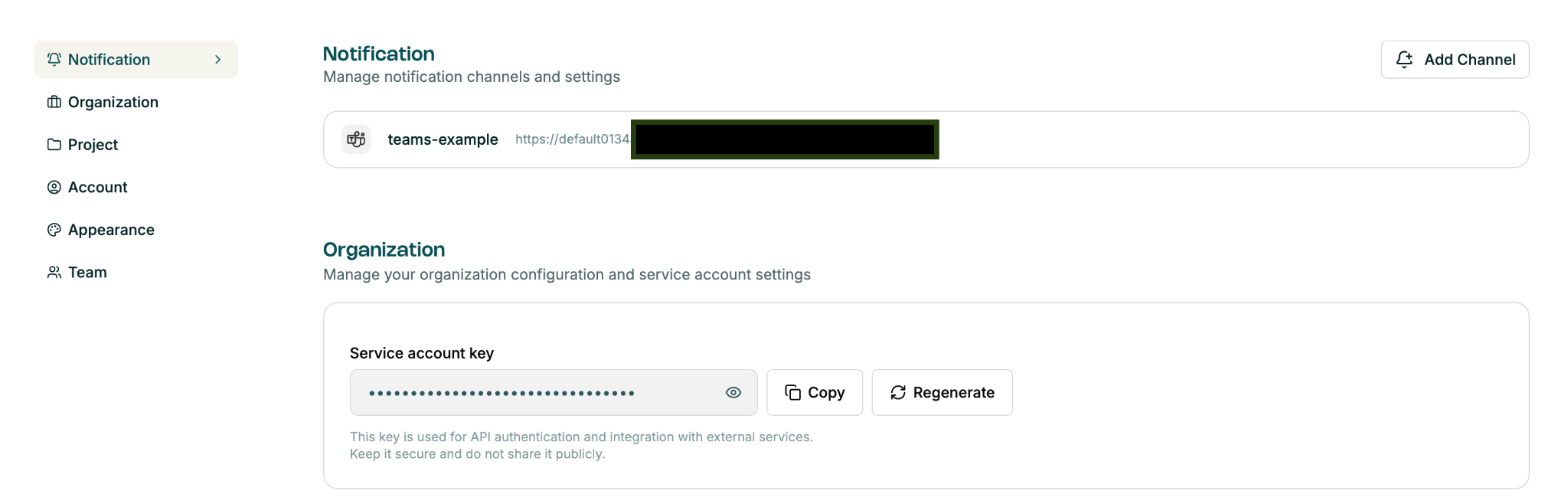
Channel Saved : Setup complete
The Teams channel now appears in your foreai Notification settings. The integration is ready to use.
Step 8 : Enable notifications per test suite
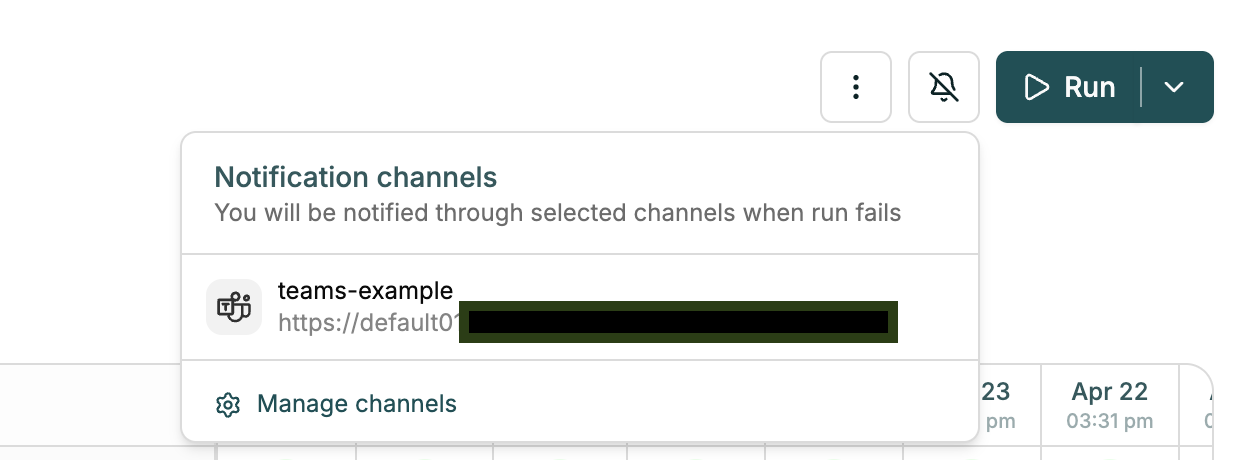
Notifications are off by default for every test suite. To enable them, open a test suite and click the bell icon in the top-right toolbar.

Step 9 : Select the teams channel
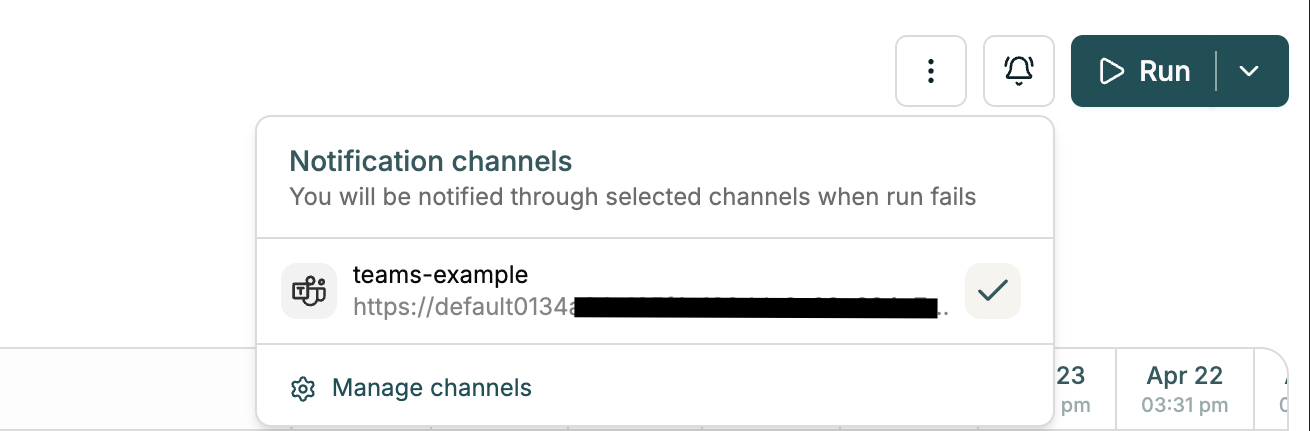
A "Notification channels" popover lists all configured channels. Click the Teams channel to select it.
Done : Notifications active
A checkmark confirms the channel is active for this test suite. foreai will now post a Teams message whenever a run fails.
Additional reference
Microsoft documentation for creating incoming webhooks with Workflows in Teams: