Email notification setup guide
Follow these steps to connect an email channel to foreai so you receive run failure alerts by email.
Step 1 : Open notification settings in foreai
In foreai, go to Settings → Notification. Click "Add Channel" to begin.
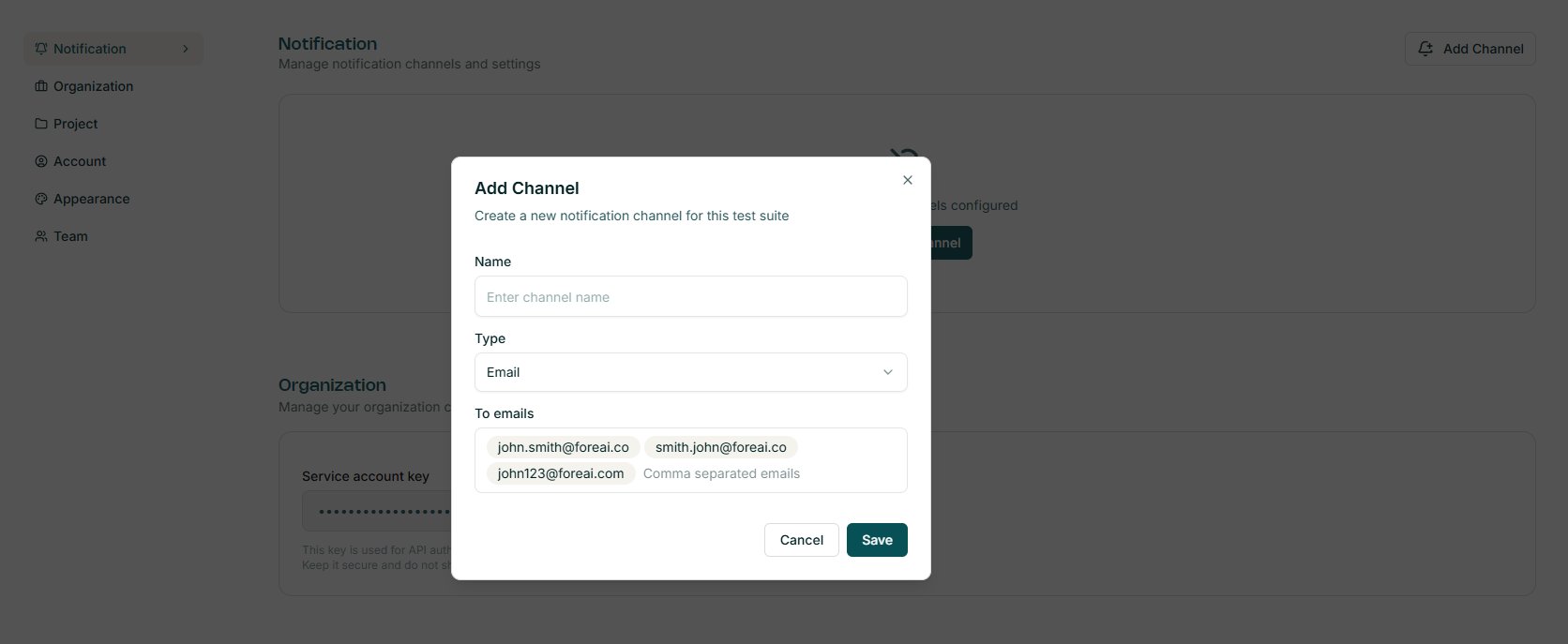
The Add Channel modal opens. Enter a name for the channel, then select "Email" from the Type dropdown.
Step 2 : Enter recipient addresses
In the To emails field, enter one or more email addresses separated by commas. Addresses are shown as tags as you add them.
Step 3 : Save the channel
Click "Save". The email channel now appears in your foreai Notification settings and is ready to use.
Step 4 : Enable notifications per test suite
Notifications are off by default for every test suite. To enable them, open a test suite and click the bell icon in the top-right toolbar. A "Notification channels" popover lists all configured channels — click the email channel to select it.

Done : Notifications active
A checkmark confirms the channel is active for this test suite. foreai will now send an email whenever a run fails.
