Structuring tests
There are several ways to structure your tests:
- Projects — separate environments within the same organisation
- Folder structure — nested folders in the test list
- Test suites — group tests to run together
Projects
Projects are separate environments within the same organisation. Each project starts with a clean slate — no secrets, variables, or modules are carried over from other projects.
Use projects to isolate distinct applications or teams that should not share configuration.

Folder structure
Tests are organised in a nested folder tree. Folders can be created when adding a new test case, and tests can be moved between folders at any time.
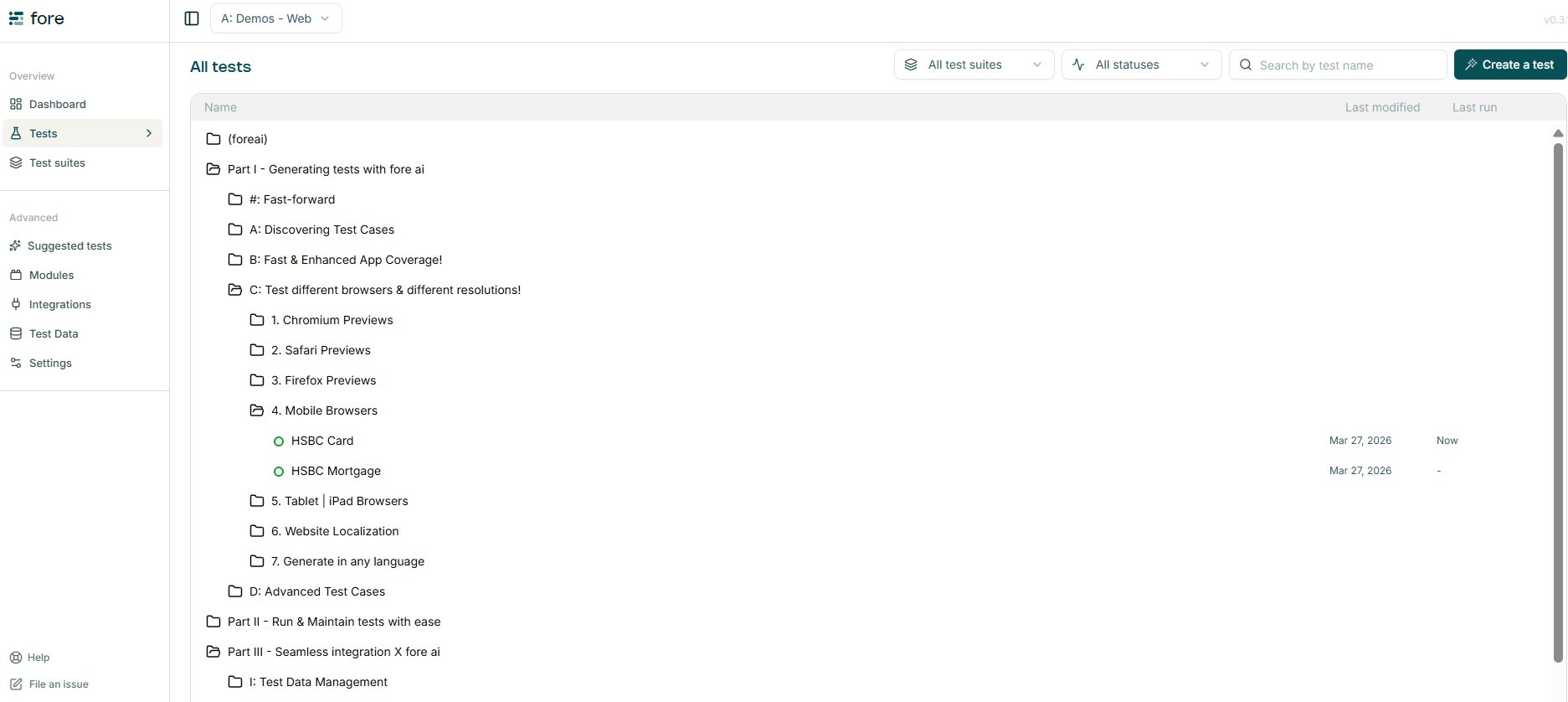
Moving a test
There are two ways to move a test to a different folder:
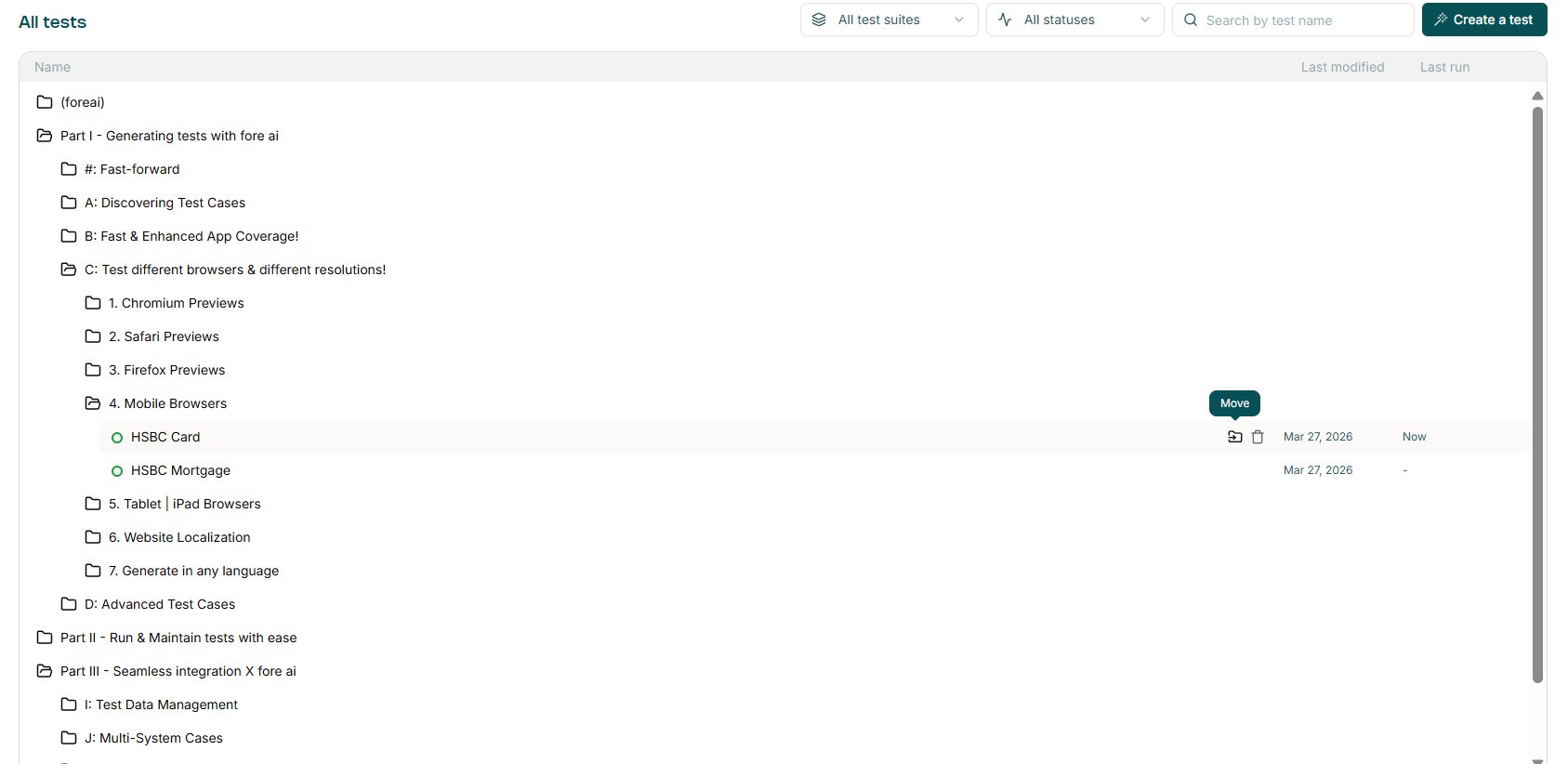
From the test list — hover over a test row to reveal the action icons, then click Move.
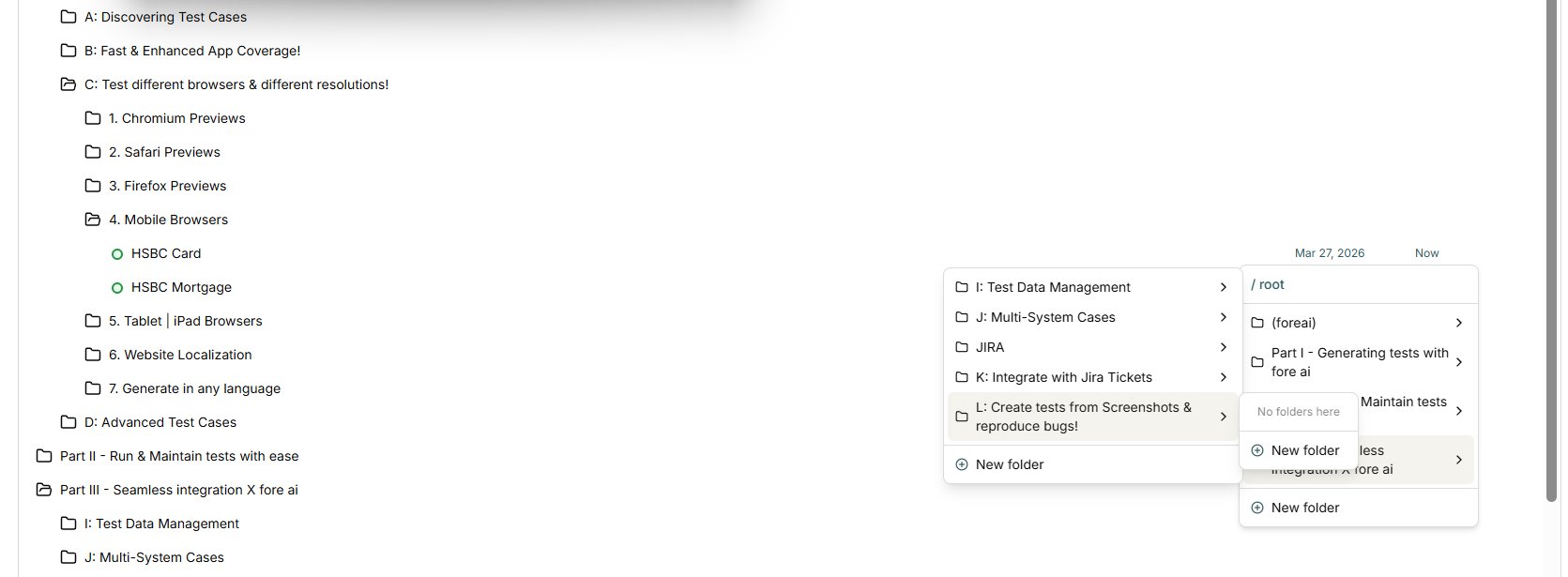
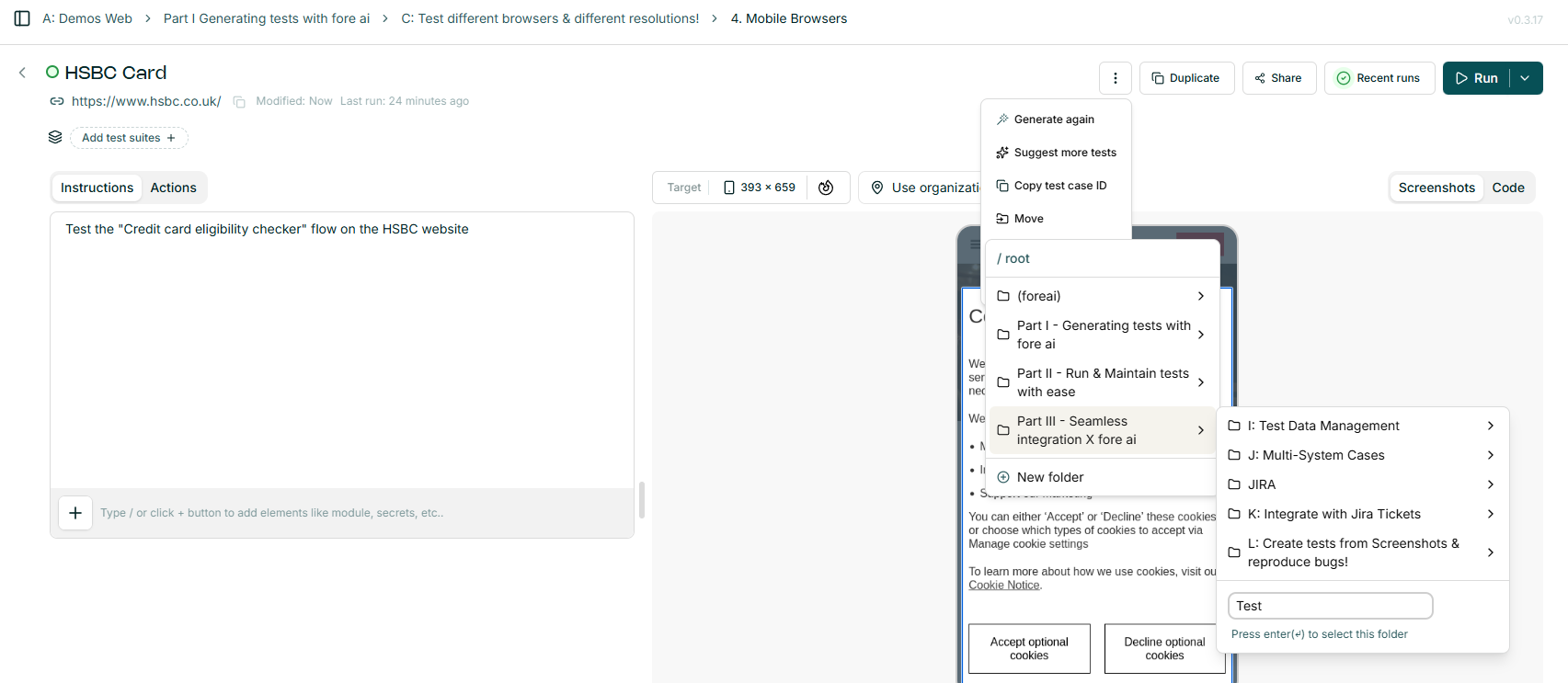
A folder picker opens. Navigate the hierarchy and select the destination folder, or create a new one.
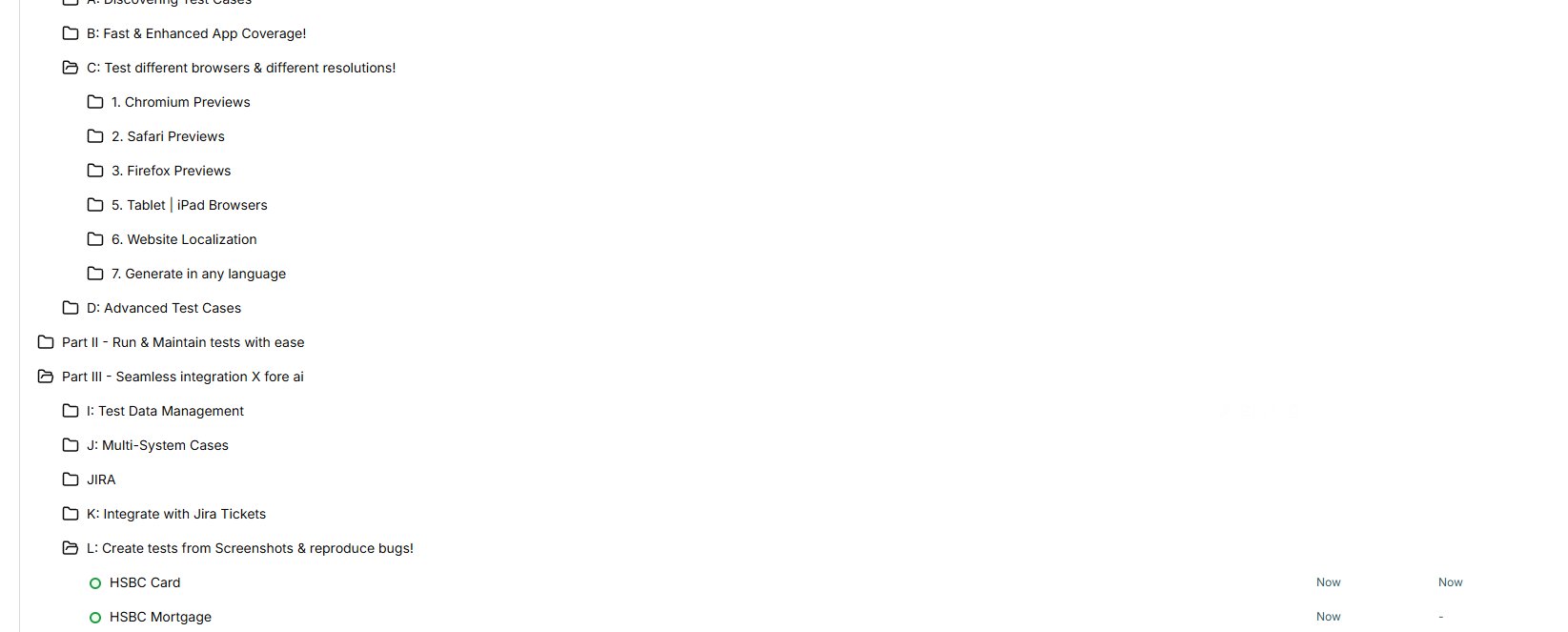
A confirmation toast appears once the move is complete.

The test now appears in its new location in the folder tree.
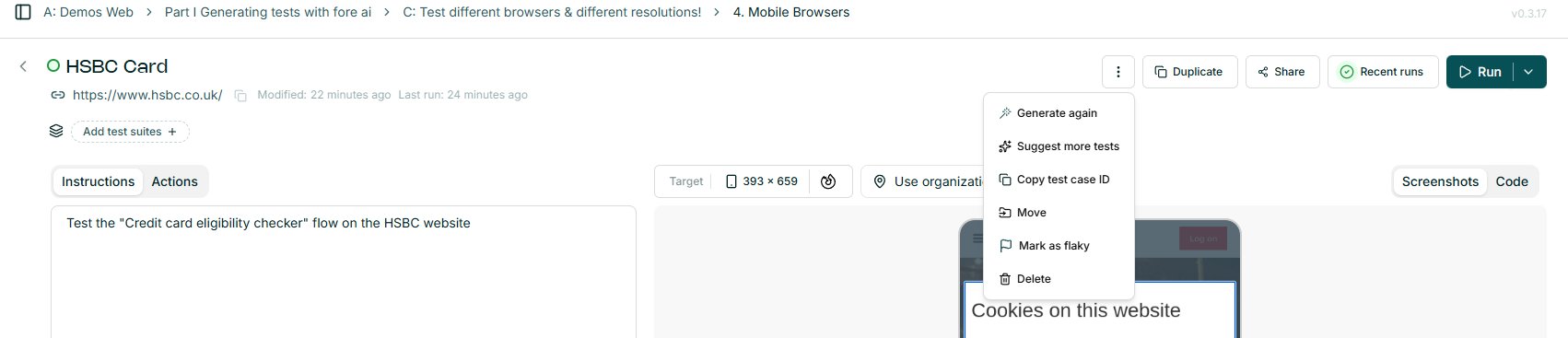
Alternatively: From the test case details page — open the "…" menu in the top-right and select Move.
Test suites
Test Suites allow you to group tests and execute them together.
A test can be added to a test suite via two ways:
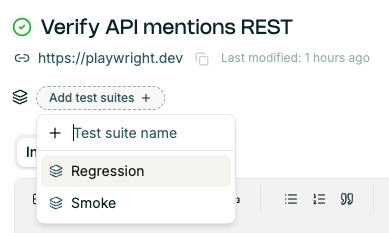
- On the test case details page, click the
(Add test suites) +button below the test name and URL.
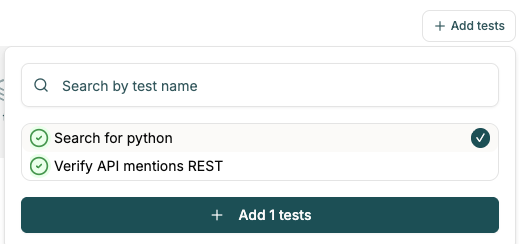
- Go the test suites panel on the side bar, click
+ Create test suite.
See Test Suites for more details on executing suites.