Running tests and analyzing test runs
Trigger and analyze tests to gain confidence about your product and detect regressions.
NOTE: test runs are executing the previously generated code, there's no AI involved in executing the code.
Triggering tests
Test runs can be triggered in multiple ways:
- manually, from the UI
- as an individual test, or part of test suite run
- from CI/CD, using GitHub Action, both for individual test cases and test suites.
It's also possible to override the parameters like URL, secrets and browser engine.
Individual tests
Open the individual test and click on the Run button. Tests are listed under [Tests] section (https://app.foreai.co/test-cases).
Test Suites
Test suite runs can be triggered:
- from the UI - open the test suite and click on the
Runbutton.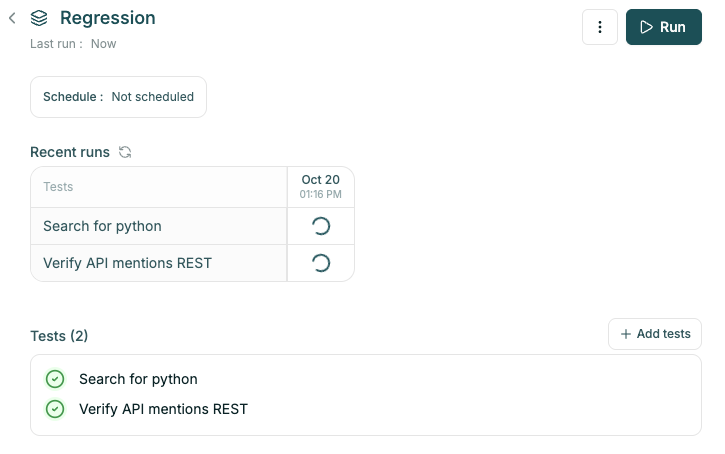
- from CI/CD through GitHub Action - see CI/CD Integration.
Scheduling Test Suite runs
Test Suite runs can be scheduled in the test suite details. Click on the Schedule : ... button
and define the frequency.
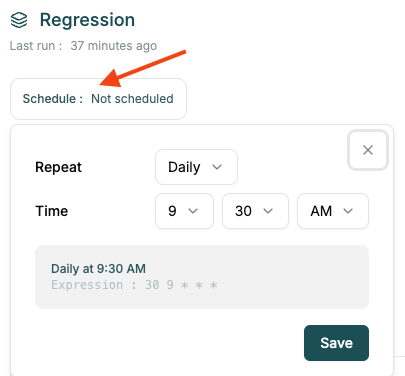
You can also schedule the runs from GitHub - see CI/CD Integration.
Analyzing test runs
Test run is available from:
- test details page - click on
Recent runs - test suite - click on passed or faild run icon /
View run detailsbutton.
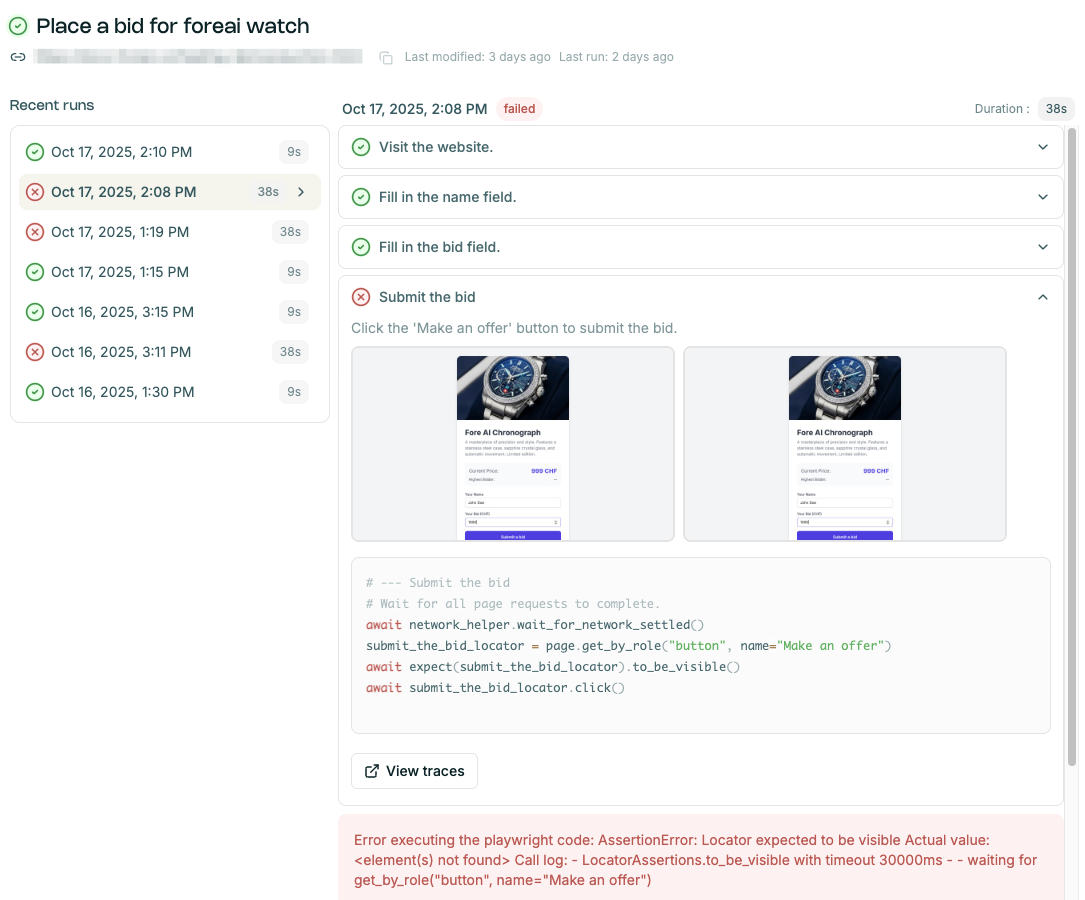
Find all the info in test run details:
- start time
- elapsed time
- executed steps, with screenshots and code
- error message
- playwright traces for advanced debugging.
Advanced debugging
Open the Playwright traces (View traces button on the step) on the test run details. These traces
contain:
- screenshots from the step - hover over the timeline to see the progress
- playwright actions
- console messages (
Consoletab in the bottom menu) - network messages (
Networktab in the bottom )
Note: for playwright actions, some data might be obfuscated to avoid leaking sensitive information.